

The public website is a plan add-on. It’s included on the Grow plan,
available as a paid add-on on the Run plan, and unavailable on the Free plan.
Manage it under Settings > Organization > Subscription. You can
build and preview a site without it, but publishing needs it. While the add-on
is inactive, your public site is replaced by a simple unbranded holding page
rather than returning an error.
When to use it
The site stays accurate without extra work: most sections read live data from 1club (plans, classes, instructors, clubs, areas, events, reviews), so they change when your operations change. Edits live in a draft, you publish them as a release, and you can restore any earlier release. Typical uses:- Take bookings on your own domain - a padel gym adds the Book online section so visitors see live availability, pick a slot and pay without leaving the site.
- Look like a premium gym on day one - a yoga studio picks the Sage template, and AI rewrites its sample copy around the studio’s own classes and prices before anyone sees it.
- Tell everyone about a closure - a climbing gym turns on the announcement bar for “The hall is closed this Sunday”, and the line sits above the navigation on every page.
- Run a second site - a gym that sells kit opens a separate shop website with its own pages and design, sharing the same members and products.
How it works
A website has three layers:- Website - its name, web address, design, features, SEO defaults, custom CSS and its pages. An organization can have several websites (see More than one website).
- Page - a route on the site (
/,/about,/plans). Each page has its own SEO settings and an ordered list of sections. A website holds up to 30 pages. - Section - a building block on a page: a hero, your plans, a timetable, a contact form. Every section has a type that decides what it shows, a Content tab and a Design tab.
Start from a template
Every website starts from a template. Open Marketing > Website: with no website yet, click Browse templates. With a website already, open the website picker in the editor header and choose Add website. Both open Website templates. Each template is a complete site designed for one kind of business, with its pages, sections and design:
Each card shows the template’s home page; hover it to scroll down the design. If you run more than one gym, a Club picker above the gallery builds the website for one gym: the site is bound to that gym and its copy talks about that gym only. Leave it empty for a website about your whole organization.
What happens when you pick one
Click a template’s cover or Use template. 1club builds the website while you watch (Building your website), which usually takes under a minute, then opens it in the editor:- The template’s pages, sections and design are laid down.
- Where the template shows a sample list beside live data (sample programs, sample areas), your own programs or areas replace it when you have any.
- AI rewrites every line of sample copy for your business, from your gym details, in your website’s languages. It writes in the voice set in your Brand Book if you have one.
- Your own photos replace the template’s stock photos where you have them.
Trying another template
To compare templates, choose Add website again and pick another. If a website you built from a template hasn’t been touched since, 1club asks what should happen to it:- Replace with … removes the untouched website once the new one is built. The new one becomes your default website and takes your organization’s address. Only staff who can delete websites are asked; others simply get the new site added.
- Keep … too keeps both.
After the website is built
The site is now an ordinary website: change anything in the editor, or ask the AI website builder. The builder knows what is left to do - stock photos still in place, sample copy, sections hidden for lack of data, links to pages that don’t exist - and can work through it with you. Ask it “What’s left to finish on my website?”. To take another template’s look without changing your pages and content, use the template looks in the Design panel (see Website design).The editor
Open Marketing > Website. The editor has two regions:- Live preview - your site renders in the main area and updates as you edit. Switch between Desktop, Tablet and Mobile. Click a section in the preview to select it.
- Editor sidebar (right) - the Sections tab lists every section on the current page, in order. The Page Details tab holds the page’s title, slug and SEO.
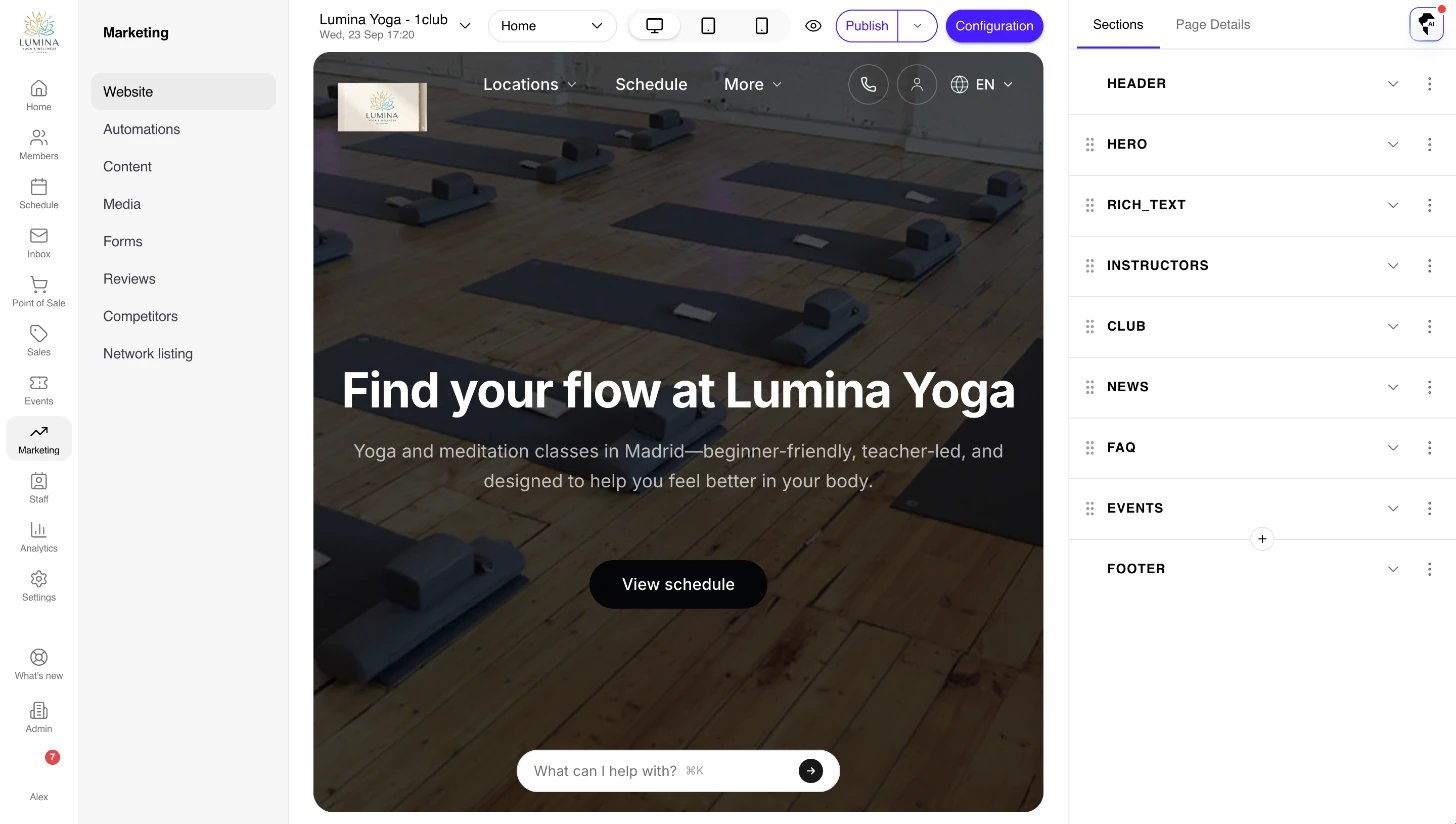
The website editor: live preview in the middle, the page's sections on the right.
- Content - what it shows: titles, text, images, buttons, which records it lists.
- Design - how it looks: layout, background, spacing, width, entrance and when it shows. See A section’s Design tab.
- Auto-save. Edits save to the draft a moment after you stop typing.
- Image picking. Image fields open the Media library. Images you upload there are kept in the library for reuse.
- Text. Text-heavy fields such as content blocks use the same editor as the rest of 1club: one toolbar for text style, bold, italic, links, lists, alignment and an Insert menu. Pasting from Google Docs, Word or a web page keeps headings, lists, bold, italic and links.
- Publish state. Publish is enabled only when the draft has changes that aren’t live yet.
- Offline notice. While the website is offline, the editor says so above the preview: you are the only one who can see it.
The Configuration menu
Pages
To add a page, use Add new page in the page picker. Each page has:- Title - shown in browser tabs and, by default, as the search title.
- Slug - the URL segment. The home page lives at
/; every other page at/<slug>. - SEO - Meta title, Meta description and Social image URL. The meta title and description can be translated per language; the image is shared by all languages.
- Hide from search engines - keeps the page out of Google and your sitemap. It stays reachable to anyone with the link. Use it for thank-you and campaign landing pages.
Sections
Add a section with Add section (or the insert control between two sections). The picker groups section types, has a Search sections box that understands everyday words (“timetable”, “reservations”, “testimonials”), and marks Book online as Recommended. Many types offer named starting points, such as Inline nudge or Photo banner, so the section arrives already set up. If your website has no booking section yet, the editor suggests adding Book online to the page.Bookings and schedule
- Book online - the full booking experience on your own site: areas, sessions with a coach and group activities, with live availability, real prices and checkout. Visitors pay by card, from their wallet or against their membership, and guests can book without an account where your booking policy allows it. Members see their own bookings on the same calendar. A multi-location gym gets a location picker, a gym with one area sees a week at a glance, and on a phone the calendar becomes a list of times. Narrow it to one sport or one club if you want.
- Calendar - a live availability calendar for just the Area types or Instructor types you pick, for a page about one facility or one coach. Area type grouping shows one calendar or a calendar per type.
- Classes - the class timetable, optionally limited to class types, programs or one club. View is Day by day or Week grid. The timetable remembers the club a visitor picked.
- Events - your live events, as featured events or All events. Hides itself when there is nothing to show.
- Event - one event’s spotlight with its cover, date, place and price.
Club and team
- Clubs - your locations as cards, each linking to its own page.
- Club - one location with its photo, details and map.
- Location - your locations with the full address, phone and email spelled out.
- Programs - your programs (Kids BJJ, Adult Muay Thai) as cards, linking to the timetable filtered to each.
- Areas - your bookable areas, each linking to its page and calendar.
- Instructors - your instructors, as a compact grid, photo cards, portrait cards or full details, optionally filtered by instructor type. Type tags let visitors pick a type.
- Instructor - one instructor with bio, photo gallery and booking calendar.
Plans and shop
- Plans - your published plans with prices. Layout is Cards, Pricing tiers, Comparison table, Price list or Price breakdown cards; List features on each card adds each plan’s included features. Limit it to plan categories or one club. Every plan also has its own page on your site, with what is included and the other plans in its category.
- Products - items from your product catalog.
Content and media
- Hero - the opening banner of a page: headline, subheadline, up to three buttons, and a background photo, slideshow or video. Its options are covered in Website design.
- Highlights - photo cards for experiences, spaces and amenities, with a figure and points beside each where you want them.
- Gallery - photos and videos from your Media library, as a mosaic, carousel, masonry, or a statement with photos.
- Scrolling band - short phrases that scroll by between two sections, as a flat band or angled tape.
- Logos - press, partner or sponsor logos in a row or scrolling, grey until hovered.
- News - your latest posts from Content, each with its own page at
/news/<slug>. - Stats - a row of figures (“10 years”, “500 members”). A figure can be a Live figure that reads your data: number of areas, instructors, programs or reviews, or your average rating.
- League table - your teams or players in order, with their scores. You keep it up to date.
- Quote - a large pull-quote attributed to a member of staff.
- Reviews - your Reviews on 1club as a carousel, a scrolling strip, one large quote, scrolling columns or pinned notes. Pin chosen reviews with Pinned reviews. Set to Google reviews, the section shows your Google rating with a link to your reviews on Google, and no review cards: 1club never copies Google’s review text. See Reviews.
- FAQ - questions and answers from Content, filtered by tags, as a list or A tab per tag.
Contact and conversion
- CTAs - a call to action with one or more buttons. Starting points: Closing ask, Showcase, Inline nudge, Offer card, Photo poster and Two large links.
- Contact form - see Contact and tour forms.
Advanced
- Columns - places other sections side by side.
- HTML Block - shows a Block from Content by its slug, so one piece of copy can appear on several pages.
- Page navigation - a row of links to the sections on the page that sticks under the header and highlights the one being read. It builds itself from your section titles.
- Tournaments - your tournaments with their draw or standings.
Contact and tour forms
The Contact form section turns visitors into leads. Choose:- Form purpose - Contact for a general enquiry, or Tour request. A tour request asks which club the visitor wants to see (when you have more than one), a preferred day and a time of day. It files the message under that club with the subject “Tour request” and tags the contact so staff can find everyone waiting to be shown around. Nothing is reserved: someone on your team follows up.
- Form fields - for a contact form, Category, Subject and Message.
- Contact fields - Phone, Date of birth and Gender, beside the name and email that are always asked.
- Custom fields - any custom fields you defined for contacts.
- Layout - Form only, or Details beside the form, which shows the club’s address, phone, email, opening hours and whether it is open now next to the form.
- Creates a contact entered into the pipeline as a lead, with any custom fields it collected.
- Posts an inbound message to your Inbox, so someone can reply.
- Is matched by email: if a contact with that email already exists, the message is attached to them without changing their details, and no new lead is created.
Features
Configuration > Features holds what the site does beyond showing its pages. Each feature is a switch; its settings appear once it is on. Changing them needs permission to manage marketing.Announcement bar
Use it for the one thing a visitor has to know before anything else: a closure, a deadline, a launch.- Announce - A sentence you write, or A post, A class or An event. A post, class or event gives the bar its title and a “Read more” link to its page, and the bar retires itself once the class or event is over. A record that is no longer public (an unpublished post, a cancelled class) empties the bar rather than breaking it.
- Announcement text - the sentence itself, or an optional lead-in before the record’s title, for example “This Saturday:”. Keep it to one line; a longer one is cut with an ellipsis.
- Bar style - Still, or Scrolling to run a longer line across the bar as a ticker.
Booking card
Shows a card with a heading, a subtitle and a button, plus a row of instructor photos.- Card heading, Card subtitle, Card button text and Card button link. The link defaults to
/book, and the card hides itself on the page it links to. - Instructor photos - switch off for a card that is the invitation alone. Instructors on the card picks up to four, in order; leave it empty for your first four public instructors.
Popup
- Popup title, Popup text, Popup image, Button label and Button link.
- Opens - After a delay (8 seconds by default), On scroll (after 50% of the page by default) or When leaving the page.
- Show again after (days) - how long before the same visitor sees it again, 7 days by default.
- Shown to - Everyone, Visitors not signed in or Signed-in members.
Legal documents and cookie consent
With the feature on, pick the Privacy policy and Cookie policy documents the banner and footer link to. Publish starter policies creates a basic privacy and cookie policy in each of your languages, ready to edit; a document you already have is never overwritten. Write and edit the documents under Waivers. Only published, public documents can be linked. The banner records consent by category: necessary scripts always run, while analytics and marketing scripts run only after the visitor accepts that category. Tracking itself is set up under Settings > Integrations: Google Tag Manager and the Meta pixel.Website settings
Configuration > Edit website has three groups:- General - Website name (only you see it), Web address (the website’s free 1club address), Club (when the website is for one location, it uses that club’s logo) and Default website.
- Appearance - Theme support: Light only, Dark only, or Light and dark (user can switch). With both, pick the Default theme: Light, Dark or System preference.
- Visibility - Website is online. Switch it off and visitors get a placeholder instead; every page, version and setting is kept and you can still edit and preview it.
SEO
Configuration > SEO opens on an analysis rather than a form:- Measured on the published site - Google Lighthouse measures your live site and reports SEO, Speed, Accessibility and Best practices scores, with the issues it found. Measure again reruns it. It needs a published, online website.
- Content SEO - 1club checks the draft and lists what to fix before you publish: no site description, pages with no search title or description, two pages with the same one, a description too short or too long for a search result, pages not translated for search, a page hidden from search. Open page jumps to the page a finding is about.
- Fix my SEO - writes every missing site and page description with AI, from your gym details and the content already on each page. Nothing you wrote yourself is replaced, and everything lands in the draft for you to review before publishing.
- Site-wide SEO - defaults for every page; a page’s own value always wins:
- Site description - one sentence about the business, used where a page has no description of its own.
- Default social image - shown when a shared page has no image of its own.
- Google Search Console token and Bing Webmaster Tools token - paste only the token from the HTML or meta tag method, so you can verify the site with Google and Bing.
sitemap.xml and robots.txt on its own. The sitemap lists your pages plus every club, plan, area, coach, news post, class and event page the site serves, and leaves out pages hidden from search. News posts and events describe themselves to Google in a form it reads, so an event can show its date, place and price in search results.
Multi-language
A website can be published in several languages.- The languages come from your organization’s languages under Settings > Organization > Details.
- Each translatable field on a section or page (headline, subtitle, button label, meta title) has a value per language.
- To translate a section, open its ⋮ menu, choose Translations, and use Auto Translate to fill it from the default language with AI. You can also ask the website builder to translate the whole site. Review the result before publishing.
- Visitors see a language switcher in the header when more than one language is published.
AI website builder
The website builder is an assistant that edits your site from a chat. On the website pages the copilot on the right answers as the website builder: open it with the 1club icon at the right of the editor panel’s tabs, or press Cmd + . (Ctrl + . on Windows). Ask it to “add a pricing page”, “make this feel more premium”, “use a serif for headings” or “translate the whole site into Spanish”. The copilot takes the editor panel’s place while it is open. What it can do:- Build and edit pages and sections, including the header and footer.
- Change the design - colors, fonts, shape and motion, or a template’s whole look. It leaves your brand color alone unless you ask.
- Rewrite copy from your real gym details (name, description, clubs, plans, classes, branding), rather than inventing awards or history.
- Pick images from your library by name, for example “pool” or “reformer”. It never uploads images for you.
- Edit content items (blocks, FAQs, posts) and custom CSS.
- Translate sections into your other languages.
- Tell you what is left - sample copy, stock photos, sections hidden for lack of data, broken links.
- It only edits the draft. Nothing goes live until you publish.
- It cannot publish, take the site offline, or delete it. Those actions are yours.
Domain and hosting
- Every website has a free 1club address built from its Web address.
- Attach a custom domain under Settings > Member Apps > Domains with the purpose Website (CMS), and point your DNS to 1club following the on-screen instructions. HTTPS is set up automatically.
- With more than one website, choose which one a domain opens with Change website on the Domains page.
Holding page
If the Website add-on becomes inactive while you have published content or a custom domain pointed at 1club, visitors don’t see an error. 1club serves a plain, unbranded holding page saying the site is temporarily unavailable. Reactivate the add-on under Settings > Organization > Subscription and your last published release returns exactly as it was.Publishing and releases
Edits do not go live until you publish.- Draft - everything you change in the editor is stored as the working draft.
- Publish - updates the live release in place with your draft. Use it for typo fixes and routine updates. No new version is created.
- Releases - open it from the arrow next to Publish. It shows the Draft and the release history, with the live one marked Live. Publish there creates a new versioned release, which is what you want before bigger changes. Restore makes an earlier release live again.
marketing.delete.organization permission. Any custom domain stays attached, so you can point it at another website.
More than one website
An organization can run several websites, for a shop, a brand, a location or a language. Each has its own pages, design, SEO settings and publish history. Members, plans, classes, instructors and the media library are shared, so a visitor who books on one is the same member you already have.- Add website in the website picker opens the template gallery.
- The picker marks the Default website and any that are Offline.
- Under Edit website, Default website picks the one your organization’s own address, booking and invoice emails, and the member portal’s legal pages point at. Exactly one website is the default.
Permissions
Staff with read access see every panel, with a note that changing it needs permission to manage marketing.
Tips
- Use live-data sections for anything that changes. Don’t paste your timetable into a hero; use Classes, Calendar or Book online so updates flow through.
- Read the template’s result before you publish. The AI rewrite keeps to your data, but a soft claim can still slip through. The builder’s “what’s left” list is the fastest check.
- One strong call to action per page. A hero button plus one or two supporting ones is plenty.
- Publish a versioned release before big changes, so you can restore it if the next round goes wrong.
- Translate after the copy settles. Running Auto Translate early means redoing it.
- Run Fix my SEO before your first publish, then add the Search Console token so you can see what people search to find you.
Troubleshooting
Related
- Website design - The Design panel, template looks and each section’s style.
- Content - Posts, FAQs and blocks the website shows.
- Media - Images and videos used by sections.
- Reviews - What the Reviews section shows.
- Plans - What the Plans section shows.
- Brand Book - The colors, fonts, logo and voice the website starts from.