

When to use it
Create a plan for every membership or pass you sell. A plan can renew or be paid once, allow unlimited visits or a set number, count those visits on one counter or on several, be shared with a whole household or company, and be shown publicly, to members only, or kept for staff. Trials and intro prices attach to a plan as promotions. Typical uses:- An unlimited monthly membership - a yoga studio sells an all-access monthly plan that renews automatically, with an off-peak version that only works before 4pm.
- A class pack that expires - a Pilates studio sells 10 reformer classes valid for 60 days after purchase.
- Two kinds of class in one plan - a studio sells “5 Yoga + 4 Pilates a month”, and a Pilates class never uses up a Yoga session.
- Gym floor plus coaching - a strength gym sells unlimited gym entry with 4 coaching sessions a month as one membership.
- A family plan - one parent buys a monthly plan, and everyone on the household account books with it.
- A drop-in day pass - a one-day pass for visitors who check in at the front desk rather than booking.
- Monthly billing by sessions - a tennis academy bills each child for the sessions their group runs that month, plus a club fee. See Per-session plans.
How it works
Memberships, passes, and drop-ins
1club treats a plan as one of three kinds, worked out from its settings rather than chosen:
The kind shows under the plan name on the Memberships page.
How a sale turns into charges
When a contact buys a plan they get a membership and, straight away, a charge:- A plan paid once - one charge at the plan’s price, plus a separate charge for the signup fee when there is one.
- A renewing plan - a charge for the first period. If you have set a billing day, the first period runs only to that day and costs less. After that, the renewal engine raises and collects each renewal on its own. See Membership billing.
What a session is
A plan counts visits or hours. A visit is a booking, or a check-in with no booking behind it. Counting in hours means each booking takes its length, so a 90-minute area booking takes 1.5 hours. Leave the number empty and the count is unlimited.The plans list
Go to Sales > Plans (/billing/plans). Plans is the first page of Sales, so the section opens here. The list opens on the Active tab; switch to Inactive for plans you no longer sell. A Frequency filter at the end of the tabs narrows the list to Recurring, One-time, Weekly, Monthly, Quarterly, Annually, or Custom.
Each row shows:
- A color dot (the plan’s color).
- Name.
- Price, with the billing frequency beneath it (a custom plan reads “N days/weeks/months”), and the signup fee when one is set.
- A category chip, when the plan has a category.
- A chip per session limit, for example “Yoga, Pilates: 5 Visits”. An unlimited plan has none.
- A Minimum term chip, for example “Minimum 12 months”.
- A Shared with account chip, when the plan is shared with the holder’s account.
- A visibility chip: Public, Admin & Member, or Admin only.
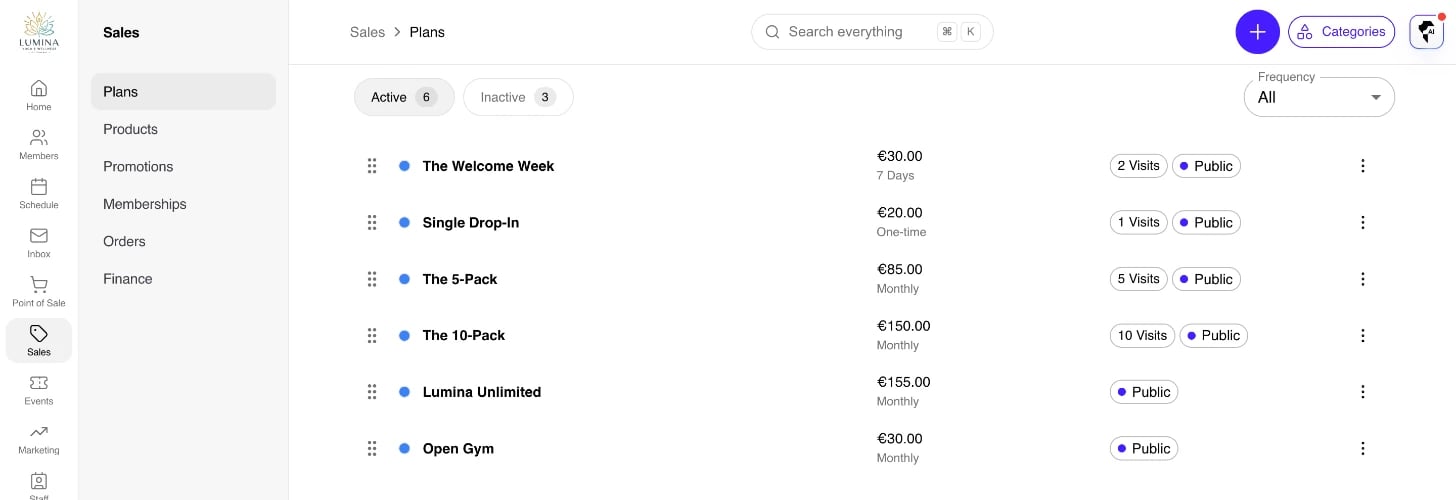
The plans list on the Active tab.
Creating, editing, deleting, and reordering plans, and managing categories,
need the billing.manage.organization permission. Without it, the header
buttons, the row menu, and dragging are hidden.
Creating or editing a plan
Click + (Add Plan), or click a plan in the list. Each plan opens in a dialog, and its address (/billing/plans?plan=<id>) links straight to it. The dialog has up to six sections.
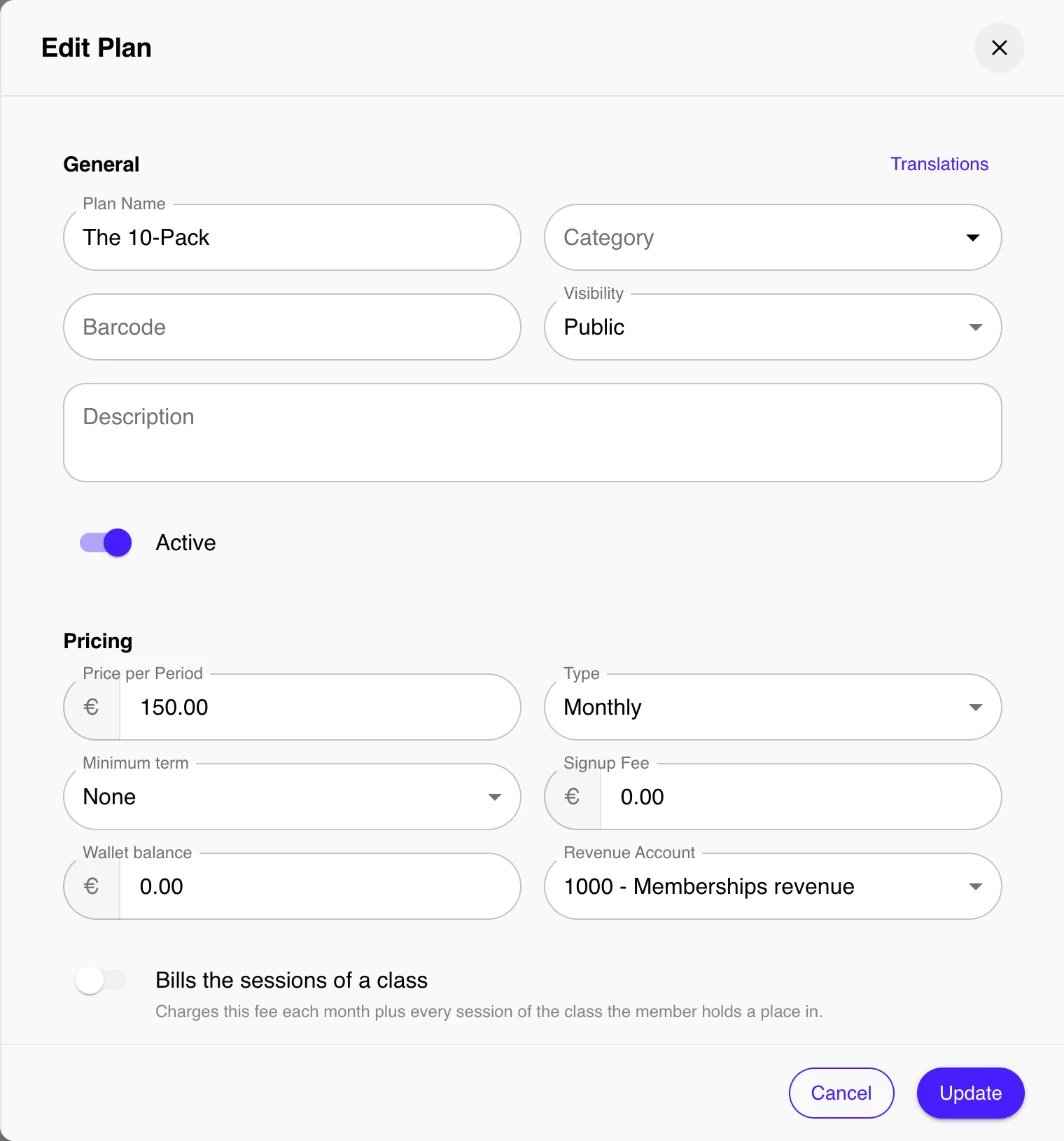
Editing a plan: the General and Pricing sections.
General
- Plan Name - shown to members. Required.
- Club - which gym sells the plan. Only shown when your organization has more than one gym. Choose All clubs to sell it everywhere.
- Category - an optional grouping (see Plan categories). Pick one, or type a new name to create it.
- Barcode - an optional code printed on a shelf card. Scan the card into this field to fill it in. When the code is scanned at the Point of Sale, the register adds this plan to the basket.
- Visibility - Public, Admin & Member, or Admin only. Decides which sales surfaces show the plan.
- Description - shown to members.
- Active - whether the plan can be sold. Turning it off doesn’t affect memberships already sold; they run until they end or are cancelled.
Pricing
- Price (Price per Period for a renewing plan, Monthly fixed fee for a per-session plan) - the amount charged each period, or the one-off price.
- Type - the billing frequency: One-time, Weekly, Monthly, Quarterly, Annually, or Custom. Custom adds a Period number and a Unit of Days, Weeks, or Months (for example 10 weeks).
- Minimum term (renewing plans only) - how long members commit for from their start date, for example 12 months and then month to month. Enter the number and pick Months or Weeks next to it, for example 52 weeks on a plan billed weekly. Leave the number empty for no term. A plan’s term is in months or in weeks, not both. The term must be longer than one billing period, so a yearly plan, for example, needs at least 13 months. Every membership sold on the plan starts with this term, staff can change it for one member, and members see it before they buy. What leaving before the term costs is set in Membership policies.
- Signup Fee - a one-off fee charged when joining, as its own charge. Optional.
- Wallet balance - an amount added to the member’s wallet when the membership starts, and again at each renewal on a renewing plan. Use it for “pay 100, get 120” offers. Optional. If the plan sells through a billing entity other than your default one, a warning explains that the member can only spend this balance on the default billing entity’s sales.
- Revenue Account - the account the plan’s charges post to. Leave it on None (uses default) to use your default revenue account.
- Bills the sessions of a class - makes this a per-session plan: each month charges the fixed fee plus every session of the class the member holds a place in. Turning it on sets Type to Monthly and locks it, turns on Default Auto Renewal, and adds Classes to what the plan covers. The plan can’t have a number of visits, can’t be a season plan, and is sold by staff only.
- Default Auto Renewal (renewing plans only) - whether new memberships on the plan renew automatically. A plan with a minimum term always renews, so members can complete their term.
- Renewal Lead Time (Days) - how many days before the renewal date 1club charges the renewal. Shown when auto renewal is on or the plan has a minimum term. Defaults to 3, at most 60. A membership sold on a billing day is charged on that day instead.
- Require payment upfront - the membership only starts once it has been paid. A member buying online pays at checkout. Staff can still sell on credit: the membership is saved and the amount stays owed.
Validity
- Shared with account - everyone on the holder’s household or company account can use the membership, all drawing on the same sessions. Applies to memberships sold from now on. See Sharing with an account.
- Session limits - a table with one row per session count. See Session limits.
- Session length - how long one visit lasts after the first door entry, in minutes. Entering again within it uses no other session. Leave it empty (Whole day) for a visit that lasts until the end of the day. Only shown when your gym has door access and the first session limit is a number of visits.
- Validity (Days) (one-time plans only) - how long the pass stays valid after it is issued.
Presentation
- Features - a bullet list shown on the plan card. Type each feature and press Enter.
- Sports - tags the plan with sports, so it shows under sport filters.
- Color - the plan’s accent color, in the list and on member-facing pages.
- Plan Images - up to 5 images, shown on member-facing sales pages.
- Most popular - highlights this plan in every list of plans.
- Intro offer - counts the plan’s buyers in the First visits report.
Operating Hours
Turn on Customize operating hours to set opening and closing times per day. Leave it off and the plan Uses club operating hours. A plan’s hours are the times its membership can be used, which is how you build an off-peak plan. At the door, a plan without hours of its own follows the area’s opening hours.Promotions
Shown once the plan is saved, to staff who can see promotions. It lists the promotions for this plan and those for every plan, each with edit and delete. Add promotion opens the promotion editor already set to this plan. See Trials, free days, and intro offers.Session limits
The Validity section holds a table of session limits. Most plans have one row. Add more with Add session limit to sell several counts in one plan, for example “5 Yoga + 4 Pilates a month” or “unlimited gym + 4 coaching sessions”. Each row has:- Covers - what this count is for. Pick Any visit, or any mix of:
- Classes - All classes, all classes in a program, or single class types.
- Areas - All areas, or area types.
- Instructors - All instructors, or instructor types (for coaching).
- Visits - how many sessions per billing period, or in total on a plan paid once. Leave it empty for unlimited.
- Counted per - Visits or Hours. A row that covers Any visit always counts visits.
How a session is taken from a count
- A booking uses the count that covers it. Two counts can never cover the same thing, so there is never a choice to make. A booking with more than one resource, such as an area booked with a coach, needs one count that covers all of them.
- A check-in with no booking uses the count for the class type, else the area type, else the Any visit count. If none applies, the check-in is refused.
- A door entry follows the same rules as a check-in.
- “Two session limits cover the same thing. Each kind of booking can count against one limit only.”
- “Only one session limit can be for check-ins without a booking.” - only one row may cover Any visit.
Sharing with an account
Turn on Shared with account to sell a family or company plan. Everyone on the holder’s household or company account can then book with the membership, all drawing on the same sessions. There are no seats to manage: the person it is shared with picks it as their way in and books. The setting applies to memberships sold from then on. Change it on one membership, from the membership’s own Shared with account switch, when one family needs something different from the next. Members see that a plan is shared on the plan card, on the plan details page, in the signup form, and on the membership in their account. An employer can buy one plan and have their team book on it the same way.Trials, free days, and intro offers
Plans have no “trial days” field. Trials and intro prices are promotions attached to the plan, so every kind of incentive uses the same eligibility, caps, audience, and analytics. Open the plan and use Add promotion in its Promotions section. The editor opens already set to this plan, and you pick the shape:- Free trial - a discount with Auto-apply on and a Value of 100%. New customers buying the plan get it free the first time, with no code. The first-time-buyer rule stops repeat redemptions.
- First-month intro - the same with a partial discount (for example 50%, or a fixed amount off the first period). On a renewing plan a discount carries through every renewal once applied, so prefer a one-off code if you only want it on the first charge.
- Coded promotion - leave Auto-apply off and give the discount a code to share by email or through partners. Members or staff enter the code at checkout.
Plan order
Plans have one global order that applies everywhere - the public plans list, the plans offered after a booking, and the admin Plans list. On Sales > Plans, drag rows to reorder them. If the save fails (for example because another admin reordered at the same moment), you see “Failed to reorder plans. The list will refresh.” and the list reloads.Booking policies don’t keep their own upsell order. When a policy upsells
plans, they display in the global plan order set here. See Booking
policies.
Plan categories
Group plans into categories (for example “Adults”, “Juniors”, “Day passes”). Categories are optional - a plan without one simply appears ungrouped.- Manage categories - On Sales > Plans, click Categories to add, rename, reorder, or delete categories. Deleting a category clears it from its plans; the plans stay.
- Assign a category - Set a plan’s Category in the plan dialog. Pick one, or type a new name to create it.
- On your website - Categories show as a tag on plan cards and on the plan details page. When a Plans section has more than one category, members get a pill filter (with an All option), and the website editor’s Categories field limits which categories a section shows.
- In membership policies - A membership policy can cover every plan in a category.
Deleting a plan
Delete is permanent, so 1club refuses it while anything still depends on the plan:- any membership sold on it, active or not,
- a package that includes it,
- a checkout for it that is still in progress.
Worked examples
Unlimited yoga membership
You run a yoga studio and want an all-access monthly plan.- Type: Monthly. Price per Period: your monthly rate. Default Auto Renewal: on.
- Session limits: one row, Covers set to All classes, Visits empty (unlimited).
- Sports: yoga.
- For an off-peak version, turn on Customize operating hours and set the plan to end at 4pm.
10-class pack
A punch card that expires.- Type: One-time. Price: the pack price.
- Session limits: one row, Covers set to your reformer or mat class types, Visits 10, Counted per Visits.
- Validity (Days): 60, so the pack expires two months after purchase.
5 Yoga + 4 Pilates a month
One membership with two counts.- Type: Monthly, Default Auto Renewal on.
- Session limits: a row covering the yoga class types with 5 visits, then Add session limit for a row covering the Pilates class types with 4 visits.
- A Pilates class takes from the Pilates count only. The membership is used up only when both counts are spent, and both refill at the renewal.
Unlimited gym and 4 coaching sessions
- Type: Monthly.
- Session limits: a row covering Any visit with Visits empty (unlimited gym entry), and a row covering your coaching instructor types with 4 visits.
- Because one count is unlimited, the membership never shows as Used.
Area hours
A padel or tennis membership with a set number of hours on the areas.- Type: Monthly.
- Session limits: one row, Covers set to the padel area type (see Areas), Visits 8, Counted per Hours (eight hours a month).
- Signup Fee: a one-off joining fee. Wallet balance: optional, for extra bookings.
Family membership
One membership for a household.- Type: Monthly or Annually. Shared with account: on.
- Session limits: cover the class and area types the family should reach.
- Category: “Family”, so it groups on your website.
Martial arts unlimited with a free first month
- Type: Monthly, one session limit covering the martial arts class types, unlimited.
- Save the plan, then in its Promotions section click Add promotion and create a Free trial (auto-apply, 100%). Turn on Intro offer to see its buyers in the First visits report.
Day pass
A single-day pass for visitors who check in at the front desk rather than booking.- Type: One-time, Validity (Days): 1.
- Session limits: one row covering Any visit. It works for check-ins and door entries but grants no booking access.
Tips & best practices
- Cover what members book. A plan whose only count is Any visit can’t book anything. For a bookable membership, pick class, area, or instructor types under Covers.
- Use one plan, not a package, for two kinds of session. Several session limits on one plan renew, pause, and cancel together; a package of two plans renews, pauses, and cancels them separately.
- Choose the unit deliberately. Class packs usually count Visits; area memberships sold as “hours per month” count Hours.
- Model trials as promotions, not prices. Keep the plan at its real price and attach a free-trial or intro promotion, so analytics and eligibility stay consistent.
- Prefer inactive over delete. Turning Active off stops new sales while existing memberships keep running.
- Set the global order once. Dragging rows on the Plans list sets the order on your website, in upsells, and in the admin.
Troubleshooting
Issue: Members can’t book anything with a membership on this plan. Cause: Its only session limit covers Any visit, which is for check-ins without a booking. Fix: Open the plan and set Covers to the class, area, or instructor types members should book. Issue: Saving the plan fails with “Two session limits cover the same thing.” Cause: Two rows cover the same class, area, or instructor type, so a booking could count against either. Fix: Narrow the rows so each type sits in one row only. Issue: The Session length field isn’t showing. Cause: It needs door access at your gym, and a first session limit with a number of visits (not unlimited, not counted in hours). Fix: Set a number of visits on the first row, counted per Visits. Issue: A renewing plan’s renewals are never charged automatically. Cause: Default Auto Renewal is off for those memberships, the member has no saved card, or the company selling the plan takes no online payments. Fix: Check the plan’s Default Auto Renewal and the membership’s own auto-renew setting, then look at Membership billing, which flags each renewal that won’t be charged and says why. Issue: Deleting a plan fails with “Failed to delete plan”. Cause: Memberships were sold on it, a package includes it, or a checkout for it is still in progress. Fix: Turn off Active instead to stop selling it while keeping its history. Issue: A custom-period plan won’t save. Cause: Custom needs both a Period number and a Unit. Fix: Fill in both (for example10 and Weeks).
Related
- Sales overview - how plans, charges, invoices, and payments fit together.
- Memberships - the record created when someone buys a plan.
- Membership billing - the billing day and how renewals are charged.
- Membership policies - what members can cancel and pause themselves, and what leaving before a minimum term costs.
- Promotions - discount codes and auto-apply trials that attach to a plan.
- Per-session plans - plans that bill the sessions of a class each month.
- Packages - bundles that include plans.
- Areas - the area types a plan can cover.