

When to use it
Create an area for every space someone can book or enter on its own. The area decides what a booking costs, when the space is open, how many bookings it takes at once, whether members book it or walk in, and what members can filter on when they pick a space. It also gets its own column on the Schedule, so staff can see at a glance what is booked where. Typical uses:- Padel areas members pick by conditions - six padel areas, where members filter for indoor ones with panoramic glass or outdoor ones with floodlights, and each has its own hourly price and schedule color.
- A multi-sport racket center - tennis, padel, and squash areas under separate area types, so each offers the right surfaces and your premium areas appear first in the booking flow.
- A gym floor members walk into - an open floor set to Walk-in, no booking, which a member’s plan opens within its hours without a booking.
- A martial-arts dojo - a tatami mat area for jiu-jitsu and muay thai, plus a boxing ring or an MMA cage as its own space.
- A climbing gym - bouldering and roped walls, with a cap on how many climbers can book a wall session at once.
The list page
You manage areas under Settings > Clubs > Areas. The page shows one sortable list with these columns: drag handle, a color bar, Name, Club, Type, How members use it, Price, Status, Visibility, and a row menu. The Club column appears only when the list spans more than one gym, and the rows are then ordered gym by gym. If your staff run more than one gym, the gym selected in the sidebar narrows the list to that gym. How members use it and Visibility are hidden on narrow screens. The gym’s default area carries a Default chip. Drag a row by its handle to reorder areas inside its gym; the order is what members see in the booking flow. You can’t drag an area into another gym’s rows. If the save fails (for example, another admin added or removed an area in the meantime), you see “Failed to reorder areas. The list will refresh.” and the list reloads. Click Add Area at the top of the page to create an area. Pricing rules next to it opens Pricing rules, where you set peak, off-peak, and member prices on top of an area’s price per hour. Click a row to open the area dialog. The row menu has:- Edit - the area dialog.
- View week in schedule - opens this area’s week on the calendar. Shown for active areas.
- Make default - makes this the gym’s default area.
- Delete.
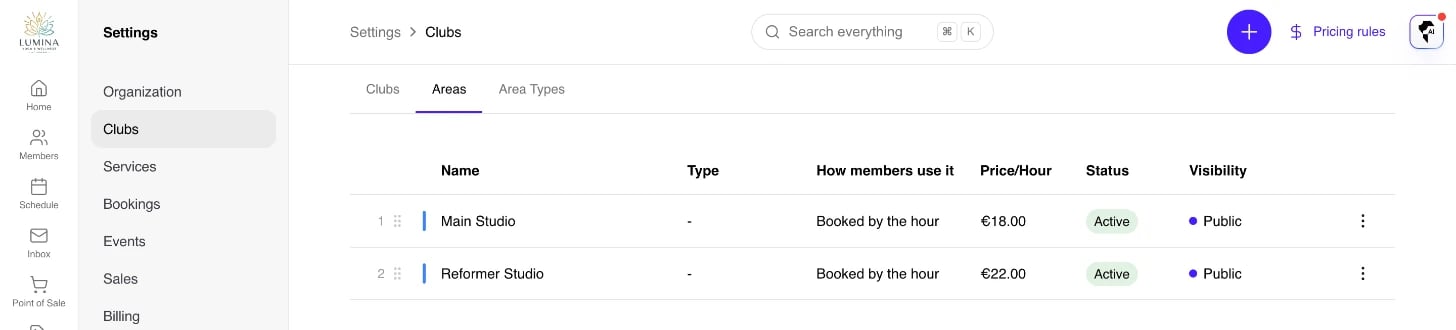
The areas list.
Creating or editing an area
The area dialog has three sections: Basic Information, Pricing, and Settings. It asks for:- Name and Club - which gym the area belongs to. The Club field only shows when your organization has more than one gym.
- Area Type - the grouping (Padel, Room, Field, Studio, etc.). Area types are managed under Settings > Clubs > Area Types and define the sports played in that type of space, a Default Price per Hour, and a default for Bookings and classes at once. When you create an area, picking an area type fills in its price per hour and how many bookings it takes at once, which you can then change. The area also takes its type’s How members use it. The chosen area type’s sports also decide which attributes are offered (see below).
- Description and Images (up to 5) - shown on the public booking pages. Use the translate action on the section to translate the name and description per locale.
- Color - the color used for the area’s blocks on the schedule.
- Price per Hour - in your organization’s currency. Used when a booking is created against this area; the booking duration multiplied by this rate seeds the line total before discounts and pricing rules.
- Bookings and classes at once - how many bookings and classes the area holds in the same slot. Leave it empty for Unlimited, for an open floor that never fills. A live event assigned to the area counts as one of them. The number of people on one booking is set on the area type (see Players and group sessions).
- Visibility - Public (visible to anyone), Admin & Member (visible to signed-in members and staff), or Admin only (staff only). The visibility shows on the area’s row.
- Status - Active, Inactive, or Maintenance. The schedule page filters its area query to active areas, so inactive and maintenance areas don’t appear on the calendar.
- Attributes - a multi-select of the area’s intrinsic characteristics (see below).
- How members use it - Booked by the hour, or Walk-in, no booking (see Booked or walk-in).
- Default area - makes this the gym’s default area.
- Operating Hours - by default the area uses the gym’s operating hours. Turn on Customize operating hours to set per-day open and close times for this area.
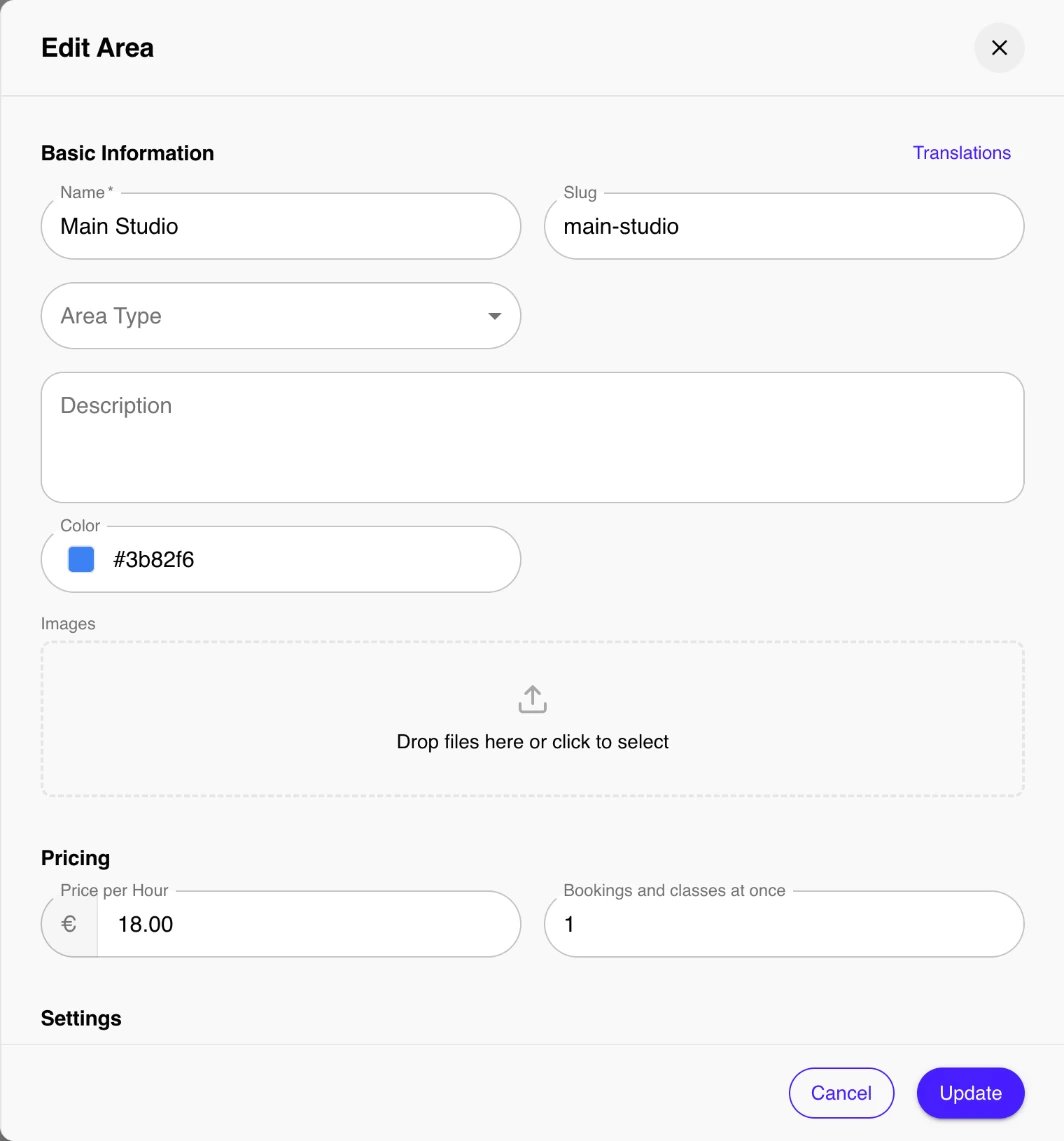
Editing an area.
Area attributes
Attributes describe what an area physically is - separate from gym-level amenities, which describe services the whole gym offers (showers, parking, cafe). Attributes are set per area, so Padel 1 can be floodlit while Padel 2 is not. They power filtering on the 1club network and help members pick the right space. The catalog is platform-curated and grouped into five categories:- Environment - Indoor, Outdoor, Covered, Semi-covered.
- Lighting - Floodlights, Natural light.
- Climate - Heated, Air-conditioned, Climate controlled.
- Surface - sport-specific, e.g. Clay, Grass, Acrylic hard court, Carpet, Artificial grass (racket); Natural turf, Artificial turf, Sport court, Sand (team); Rubber flooring (fitness); Sprung floor, Marley floor (studio and dance); Tatami (martial arts).
- Feature - sport-specific, e.g. Panoramic glass (padel), Lifting platform and Functional rig (fitness), Ballet barre (dance), Boxing ring and Cage (martial arts), Lap lanes (water), Bouldering wall, Top rope, Lead wall, Auto belay (climbing).
Booked or walk-in
How members use it decides how a member gets into the area:- Booked by the hour - the area is booked, and only a booking opens it. This is the default, and it’s right for anything one group uses at a time, such as a padel area or a treatment room.
- Walk-in, no booking - the area is entered on a plan: the gym floor, the pool, the sauna. A member whose plan covers the area can come in within the plan’s hours with no booking. With door access, the plan opens the door for them.
The default area
A gym can mark one area as its default area: the open floor of a gym, climbing hall, or studio. A check-in that names no area lands there - the front desk’s direct check-in, the check-in app’s open-gym mode, or a member’s own scan - when the member’s plan covers the whole gym rather than particular classes, areas, or instructors. A gym with a single active area needs no default; that area is used anyway. Gyms that only take bookings, such as a racket center, usually have none. Set it with Default area in the area dialog, or Make default in the row menu. Making another area the default clears the previous one.Deleting an area
Use Delete in the row menu. The confirmation warns that the action can’t be undone. You can’t delete an area that has bookings - its booking history stays attached to it. Set the area to Inactive instead to stop new bookings, or add an area block to close it for a set period. If the gym uses door access, you also can’t delete or deactivate its last active area until you turn door access off.How areas show up on the schedule
The Schedule page reads active areas and renders one column per area in day view, grouped by area type. Click an area’s name at the top of its column to open its week. Each block on the calendar uses the area’s color (or a hash-generated color if none is set). Hidden area types or hidden uncategorized areas - configured under Settings > Bookings > Schedule Display - default to off but can be toggled per browser via the resource filter panel. The booking dialog uses the area’s price per hour to seed the price breakdown. A booking policy scoped by area type can override payment timing or refund rules for a subset of areas.Worked examples
Padel gym with indoor and outdoor areas
You run six padel areas and want members to filter by conditions.- Create an area type called Padel under Settings > Clubs > Area Types, with the sport set to padel.
- Add one area per padel space. On the indoor ones set attributes Indoor, Panoramic glass, Artificial grass, Climate controlled. On the outdoor ones set Outdoor, Floodlights, Artificial grass.
- Set Price per hour per area, and give indoor and outdoor areas different colors so the schedule reads at a glance.
- Pair with a booking policy scoped to the Padel area type for lead times and cancellation windows.
Multi-sport racket center
You offer tennis, padel, and squash.- Create three area types (Tennis, Padel, Squash) so the attribute picker offers the right surfaces for each (Clay and Acrylic hard court for tennis, Artificial grass for padel).
- Reorder areas within each gym so your show area or premium areas appear first in the booking flow.
Martial arts dojo
- Create a Mat area (sport: jiu-jitsu, muay-thai) and set attributes Indoor, Tatami, Mats, Air-conditioned.
- Add a Ring area for boxing with Boxing ring, or a Cage area for MMA with Cage and Padded walls.
Climbing gym
- Create a Bouldering area with Bouldering wall and Training board, and a Roped area with Top rope, Lead wall, and Auto belay.
- Use Bookings and classes at once to cap how many bookings a wall takes in the same slot.
Tips & best practices
- Set the area type first. It scopes the attribute picker to relevant surfaces and features and fills in the default price per hour, bookings at once, and how members use it, so create your area types before your areas.
- Attributes are for members, not billing. They drive filtering and discovery; price and payment live on the area and the booking policy.
- Prefer Inactive over Delete. An area with bookings can’t be deleted anyway. Use Inactive or Maintenance to take an area offline, or an area block for a set period.
- Give each area a distinct color so the schedule is readable when several areas run side by side.
- Model a row of identical spaces deliberately. Either create one area per space (best for per-space pricing and attributes) or one area with Bookings and classes at once set to the number of spaces (simpler, but no per-space detail).
Troubleshooting
Issue: An area doesn’t appear on the schedule. Solution: The schedule only shows Active areas. Check the area’s status is Active, not Inactive or Maintenance. Also confirm its area type isn’t hidden under Settings > Bookings > Schedule Display, or toggle it back on in the resource filter panel. Issue: The attribute I want isn’t in the list. Solution: The picker filters to attributes relevant to the area type’s sports. Set or change the Area type so its sports match (e.g. pick a racket sport to see Panoramic glass and Artificial grass). Universal attributes (Indoor, Floodlights, Heated) always show. Issue: I can’t delete an area. Solution: An area that has bookings can’t be deleted. Set it to Inactive instead. If the gym uses door access and this is its last active area, turn door access off first. Issue: My reorder didn’t stick. Solution: If another admin added or removed an area in the same gym while you were reordering, the save is rejected and the list reloads. Reapply your order on the refreshed list. You also can’t drag an area into another gym’s rows.Related
- Schedule - Where bookings against areas show up.
- Bookings - Day-to-day reservation management.
- Booking policies - Rules that apply per area type.
- Area types - The groupings that set an area’s sports and defaults.
- Pricing rules - Peak, off-peak, and member prices on top of an area’s price per hour.
- Classes - Group activities held in an area.