

When to use it
Most reservations and check-ins start here. Click an empty slot and the right dialog opens pre-filled for that area, instructor, or class type, and right-click a block to check someone in, take a payment, or cancel without leaving the grid. Typical uses:- Build tomorrow’s class grid fast - drop a class into each start time, then copy a popular class like your 18:00 vinyasa to the other days that run it.
- Reschedule an area booking - a member asks to move their Tuesday padel game an hour later, and you drag the block to the new slot.
- Front-desk check-in during class - as members arrive for the 09:00 class, check them in straight from the class block.
- Declutter a venue with many areas - a racket center with a dozen areas and several coaches shows only the areas the desk is working.
- Find a free hour for one area - open one area’s week and step from area to area until one has the hour the member wants.
Layout
Open Schedule in the left rail; the calendar is the page it lands on.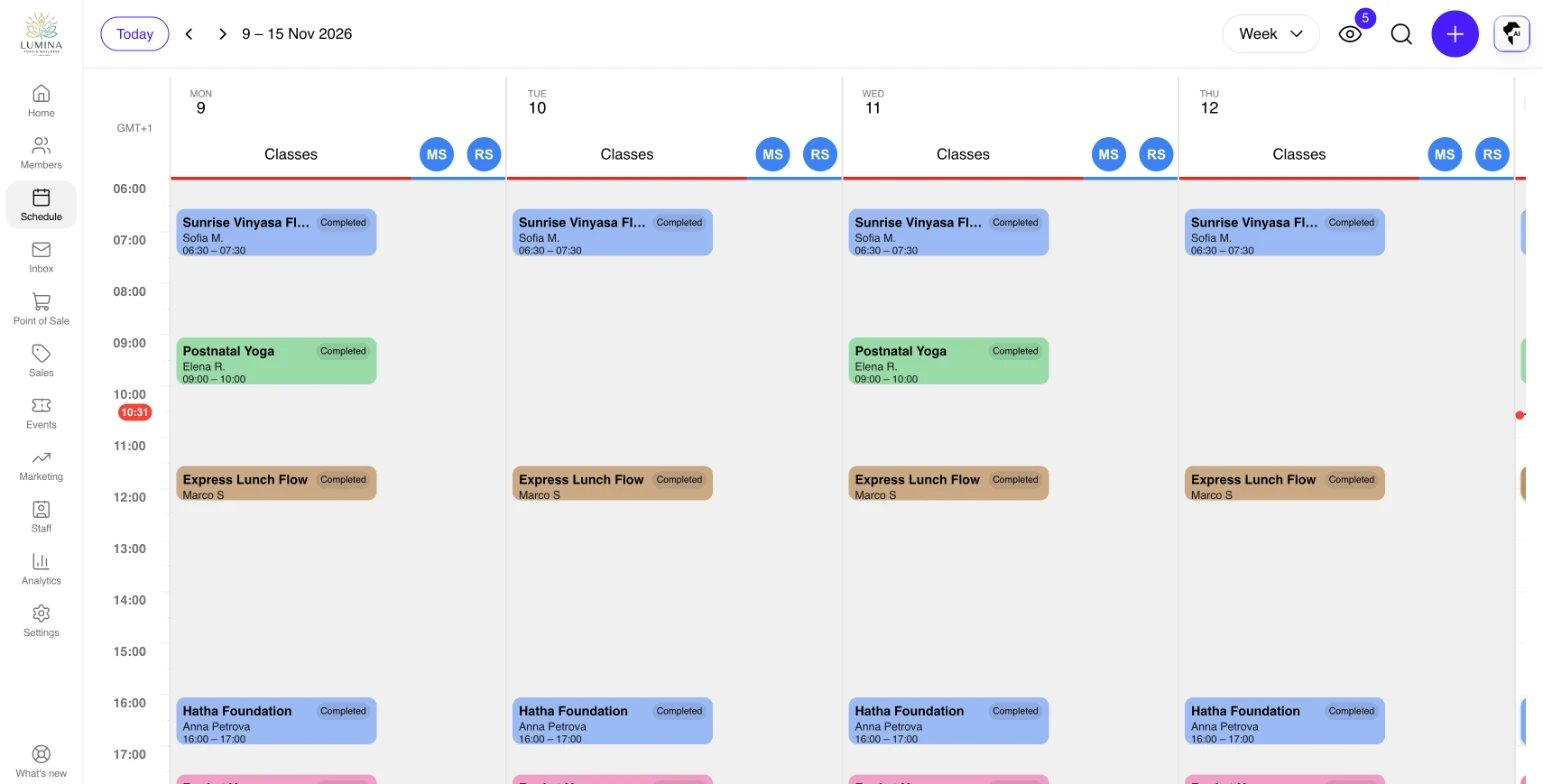
The calendar in week view, split by resource.
X), Classes (C), and Check-ins (V). Each list opens inside the Schedule, with a period picker where the calendar’s dates sit. Until you pick a period, a list shows the calendar’s: this week when you came from Week, today from the other views. The Schedule remembers the last view or list you used.
Day is a vertical time grid for one day with one column per resource: class-type columns first (A-Z), then a fallback “Classes” column, then instructor columns in the order set under Staff > Instructors, then area columns in the order set under Settings > Clubs > Areas. Instructor columns use the instructor’s display name. The time axis is built from your operating hours, in 30-minute increments.
Timeline shows the same day and the same resources as Day, turned on its side: one row per resource, with time running across.
3 days and Week show days as columns, starting from the selected date for 3 days. Resources are merged - you see all activities for each day in one column, not one column per resource - because a column per resource per day would be unreadably wide.
Use the arrows and Today to move between dates, or click the date to pick one from a calendar. The selected date is pushed to the URL as ?date=YYYY-MM-DD so you can share a link to a specific day.
In 3 days and Week, click a day’s heading to open that day in Day view. The browser’s back button returns you to the week.
One area’s or one instructor’s week
In Day or Timeline, click an area’s or an instructor’s name at the top of its lane (or choose View week from the lane’s options menu) to open that resource’s week: its days as columns, with only its own bookings, classes, and blocks. The bar above the week names the resource, with arrows to step to the previous or next area (or instructor) and a menu to jump to any other, so the desk can walk the areas looking for a free hour. Back returns to the view you came from. The address carries the focused week (?resource=area-12), so you can share it. View week in schedule in an area’s row menu under Settings > Clubs > Areas, and the link on an instructor’s page, open the same week. An instructor who can see only their own schedule lands on their own week.
Resources and what shows up where
The schedule reads three live data sources for the visible range:- Classes - shown as blocks on their class-type column (or the fallback “Classes” column for classes without a type). Each class with assigned instructors also produces a mirror “teaching” block on each instructor’s column in day view, so the instructor reads as busy.
- Bookings - shown on the area column if they have an area, on the instructor column if they have an instructor (both, if they have both), or on the relevant class-type column if they’re class-bound. Class-bound bookings are suppressed in the 3 days and Week views because the class itself already represents them.
- Instructor time off - shown as grey blocks on the instructor’s column, alongside shift breaks and rostered days off (see Roster and time off).
- Area blocks - shown as grey, dashed cards on the area’s column (see Area blocks).
status=active) and bookable instructors (isBookable=true) are the only ones included. Inactive or non-bookable resources don’t get a column.
In Day view, an area or instructor lane with nothing on it that day folds to a narrow strip, so the busy lanes get the width. In the area and instructor lanes, each free hour shows that hour’s price from the area’s rate and your pricing rules. When you arrive from a member’s profile with + > Booking, the prices are that member’s. Hours outside a resource’s operating hours are shaded.
Filtering what you see
The Show on schedule button in the corner of the grid lists every class type, instructor, and area, so you can toggle individual resources on or off. When some are hidden, its label tells you how many. Your choices are saved per view in browser storage. Each column header also has an options menu: Hide and View details, which opens the instructor’s profile or the area’s settings. The organization-level defaults for what’s hidden come from Settings > Bookings > Schedule Display (the Default visibility card), which lets you hide entire class types, instructor types, or area types, plus uncategorized classes, instructors, and areas. Your own toggles layer on top of these defaults: if you flip a resource to a state that matches the default, the override drops so future settings changes still take effect.Coloring
Two coloring modes can be toggled on the same Settings > Bookings > Schedule Display page:- Staff coloring - when on, a booking takes the color of the instructor assigned to it. When off, blocks use the resource’s configured color (or a hash of the resource name as a fallback). The same section sets the color of Any instructor bookings - area bookings still waiting for a coach - so they stand out from ordinary area bookings. The card also says Any instructor in words, so it reads the same with staff coloring off.
- Source coloring - when on, a second border color is added that encodes the booking source (admin, portal, website, kiosk, etc.). Source colors are configurable on the same settings page.
Creating activities
Click an empty time slot to open the create dialog. The dialog is pre-filled based on which column you clicked:- Click a class-type column to open the class dialog with the class type and time range pre-set.
- Click an area column to open the booking dialog with the area and time range pre-set.
- Click an instructor column to open the booking dialog with the instructor and time range pre-set.
Acting on existing blocks
Click a block to open it. A booking opens in the booking panel beside the calendar, so the schedule stays in view. Classes and events open their detail pages, while time-off entries, shift breaks, and area blocks open their edit dialogs. Right-click a block (or use the mobile tap menu) for its actions. Each is shown only when you hold the permission for it:- Bookings - View, Edit, Check In, Add Payment (only while there’s a balance), Message, and Cancel.
- Classes - View, Edit, Cancel (or Restore for a cancelled class), Add Booking, Check In, Message (when the class has bookings), and Delete.
- Time off and area blocks - Edit and Delete.
- Events - View.
Duplicating a class or booking
To copy a class or a booking to another time without reopening its dialog, hold Option (Mac) or Alt (Windows) and drag the block to a new slot, then release. While you drag with the key held, the calendar shows that you are copying rather than moving: the cursor becomes a copy cursor, the source block gets a green outline and a small copy badge, and the target slots highlight in green. Let go of the key mid-drag to fall back to a normal move.- A copied class is a single one-off class at the drop time. It keeps the original’s name, description, instructors, area, capacity, price, visibility, color, and class type, but never its recurrence, and it starts with no bookings or check-ins. A Class duplicated banner offers Undo, which removes it again.
- A copied booking is the same member on the same area or with the same coach, for the same duration, at the drop time. It’s priced for the new slot, set to be paid at the desk rather than drawn from a membership, never repeats, and doesn’t send a confirmation email. A Booking duplicated banner offers Undo, which cancels the copy.
Live updates
While the calendar shows today or a future date, it checks for changes every 30 seconds and reloads when someone else adds or changes something, briefly highlighting the cards that changed. It pauses while you have a dialog, menu, or drag open. The refresh button in the bottom corner shows when the schedule was last updated and reloads it on demand.Bookings created with a member pre-selected
If you arrive at the schedule from a member profile with + > Booking, the URL carries?contactId=X. A toast prompts you to pick a slot, and every booking dialog you open from a slot click is pre-filled with that contact.
Instructors on the calendar
Instructors use the same Schedule page. An instructor who can only see their own schedule sees their own classes and bookings, gets no actions the server would refuse, and adds their own time off from Add > Time off. An instructor who is also a manager or admin sees the full calendar.Worked examples
Build tomorrow’s class grid fast
Open Day view on tomorrow, click the class-type column at each start time to drop in a class, then Option/Alt-drag a popular class (say your 18:00 vinyasa) to the other days that run it. Each drop is a fresh one-off class with the same name, instructor, area, and capacity but no bookings yet.Reschedule an area booking
A member asks to move their Tuesday padel game an hour later. Find the block on the area’s column, drag it to the new slot, and confirm the old and new time in the prompt. The resource and duration stay the same; only the time shifts.Front-desk check-in during class
As members arrive for the 09:00 class, right-click the class block and choose Check In. No need to open the class detail page.Declutter a venue with many areas
A racket center with a dozen areas and several coaches can be noisy in Day view. Use Show on schedule to show only the areas you’re working, saved per view so the desk keeps its layout.Find a free hour for one area
A member wants padel area 4 on any evening this week. In Day view, click Padel 4 at the top of its lane to open its week, and look for a free evening hour. If none is free, use the arrows beside its name to step to the next area.Tips & best practices
- Day view for the desk, Week view for planning. Day view gives you per-resource columns for live operations; Week view is better for seeing the whole week at a glance.
- Option/Alt-drag to clone, plain drag to move. Release the modifier mid-drag to fall back to a move; the copy cursor and green highlight tell you which mode you’re in.
- Share a day with a link. The selected date is in the URL (
?date=YYYY-MM-DD), so you can send a colleague a specific day. - Let settings own the defaults. Set org-wide visibility under Settings > Bookings > Schedule Display; use Show on schedule only for per-session tweaks, since matching the default drops your override.
Troubleshooting
Issue: An area or coach is missing from the calendar. Solution: Only active areas and bookable instructors get a column. Check the area status and the instructor’s Bookable toggle. Also confirm the resource’s type isn’t hidden under Settings > Bookings > Schedule Display, or re-enable it under Show on schedule. Issue: A class booking doesn’t appear in the Week or 3 days view. Solution: This is by design. Class-bound bookings are suppressed in the 3 days and Week views because the class block already represents them. Switch to Day or Timeline to see individual bookings. Issue: Block colors aren’t what I expect. Solution: Coloring depends on the modes under Settings > Bookings > Schedule Display. With staff coloring on, blocks use the assigned instructor’s color, not the resource color, and Any instructor bookings use the color set for them. Turn it off to color by resource. Issue: My duplicate-drag just moved the class instead of copying it. Solution: Hold Option (Mac) or Alt (Windows) for the whole drag. If you release the key before dropping, it falls back to a move.Related
- Bookings - The list view and the booking panel for reservations.
- Classes - Class creation, capacity, and attendance.
- Events - One-off ticketed events that render as read-only cards.
- Season passes - Sell a whole season of a weekly hour from a slot.
- Booking policies - Rules that govern payment timing and cancellation.
- Check-in models - Entrance flow your front desk should follow.