

When to use it
Use a class for a group session with a single price per seat, whether it runs once or every week of the term. Capacity is enforced for you, and a seat that frees up before the class starts goes to the next person on the waitlist. For a one-off occasion with several ticket tiers or its own page, use an event instead. Typical uses:- A yoga class that fills up - a vinyasa or reformer Pilates class capped at your mat count, with a drop-in price and a waitlist that offers freed seats to the next in line.
- A free community kids’ martial-arts class - a free BJJ session where staff log attendance on the mat with no payment step.
- A weekly spin class for the term - one series created in full when you save, so you can move one week’s class without disturbing the rest.
- A padel clinic with friends - a member books spots for themselves and friends in one booking, with each guest seat charged the drop-in rate.
The list page
The classes list opens inside the Schedule: choose Classes under Lists in the view picker, or pressC on the calendar. The period picker in the toolbar sets which days it covers, starting on the calendar’s period (this week from Week, today from the other views). A class’s detail page is where you run attendance, check-in, and waitlist conversion.
The classes list has four tabs with counts for the chosen period: All, Active, Cancelled, and Completed. Active is the default, and the list remembers the tab you used last. Each tab is paginated and sortable. Multi-select is enabled - pick rows and use the bulk delete action.
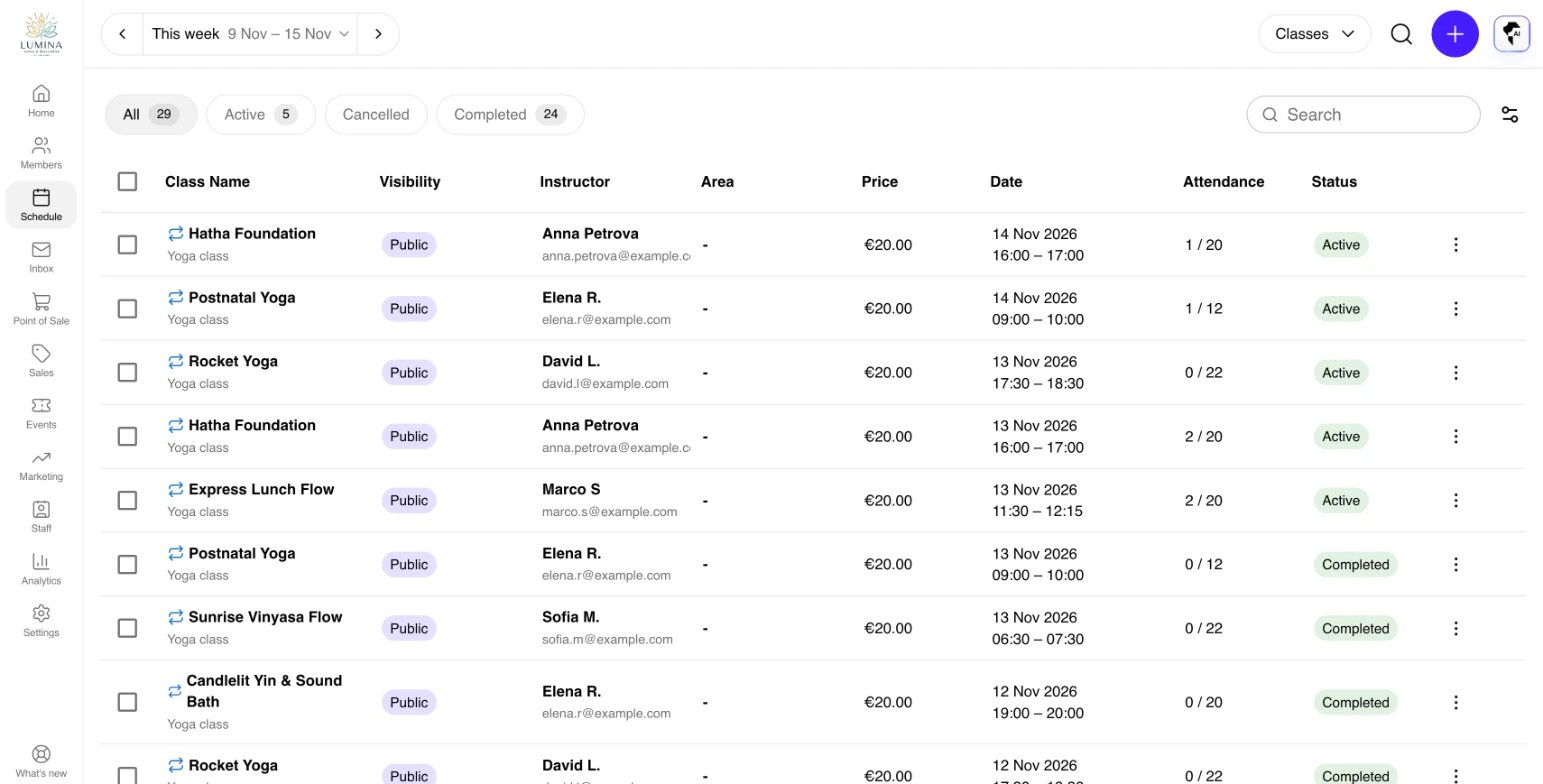
The classes list.
Creating a class
The class dialog asks for:- Name, Description, Class type, and Sport. Class types are managed under Settings > Services > Class Types; the type controls cancel-if-zero-attendance behavior and the revenue account the class books to.
- Gym and Area - where the class is held. The area selector is filtered to the chosen gym.
- Instructors - one or more, picked from your bookable instructors.
- Date and time - start and end. Multi-day classes are supported (the detail page formats the range accordingly).
- Max capacity - leave blank for unlimited. The class is never “full” while capacity is unlimited.
- Price - per booked seat, in your organization’s currency. Set to
0for a free class. - Visibility - Public (anyone), Admin & Member (signed-in members and staff), or Admin only (staff only, never shown to members).
- Multi-day class - turn on when the class runs across several days instead of one session.
- Schedule note - shown to members on the schedule, for example “Booking required” or “Bring clean indoor shoes”.
- Notes - only visible to staff, never to members. Applies to this class only, not the whole series.
- Recurrence - turn on to repeat. Pick the pattern (daily, weekly with specific weekdays, monthly) and how the series ends: Until date, After occurrences, or Never.
The class detail page
The header carries the date, the class name, its status, and tags for visibility, Recurring, and the sport. Below it, a details row shows the Instructor (linked to their profile), the gym (when you have more than one), Area, Price, Class Type, the Recurrence summary with a View schedule link to the rest of the series, and the review Rating. The schedule note, staff notes, description, and any images follow. The header buttons are:- Check In - opens the check-in dialog. It follows the check-in window: it’s disabled outside the window unless you can check in at Organization scope, and always disabled for a cancelled class.
- Add Booking - opens the booking form with the class filled in. It becomes Add to Waitlist when the class is full. Adding a booking to a class that has already ended needs organization-wide booking permission.
Promoting the roster after a grading
On a gym that runs progression tracks, the roster shows who has earned their next level or their next stripe. A green award next to a member’s name means they meet every requirement for it; hover it to see which, and their sessions (for example 27 of 25). When anyone on the roster is eligible, an Eligible pill appears next to Active. It lists each of them with where they are, where they move to (a new level or one more stripe), their sessions and days, and whether they’re checked in. Everyone starts ticked: untick whoever did not pass, then click Move up N. The confirmation lists each member’s change and records it on the class’s day unless you pick another date. Tell each member about their new level or stripe is on by default; switch it off to move them up without a message.Cancelling vs deleting
Cancel changes the class status to cancelled, leaves the row visible on the Cancelled tab, and notifies booked members. Cancellation refunds follow the cancellation rules on the matching booking policy. Restore brings a cancelled class back onto the schedule. Only that occurrence is restored - a recurring series is unchanged. Bookings that were cancelled with the class are not restored, so members have to book again. Delete removes the class. For a recurring class, you choose whether to delete just this instance or all future instances. Deleting fails if the class has bookings or waitlist entries - cancel or move them first. The right-click menu on a class block in the Schedule page exposes the same cancel, restore, and delete actions.Waitlist
When a class is full, members can join the waitlist (from the portal) or staff can add them via Add to Waitlist on the detail page. When a seat opens before the class starts, the first person on the waitlist is either booked straight in (when the class is at least 12 hours away and the cancellation falls inside the full-refund window) or sent a notification with a claim window. See Waitlists. The default claim window is 15 minutes and is configurable on the booking policy. Past the claim window, the offer rolls to the next person. Staff can manually move a waitlist entry to a booking from the attendance grid, even after its claim window has passed.Message participants
The Message action collects the contact IDs of all confirmed bookings and opens the Compose page pre-populated with the recipients. Use this for last-minute class changes, location swaps, or substitute instructors.Party bookings
Members can reserve more than one seat in a class in a single booking - for example, a parent bringing friends along. When booking, they pick how many seats using the Book for dropdown (options like “Me”, “Me and another person”, “Me and 2 others”, plus any household members). Each extra seat becomes a separate guest booking attached to the same order. The booker’s own seat keeps its price (including any membership coverage); each guest seat is charged the class drop-in rate. All seats count toward the class capacity.Max party size
Party bookings are controlled per class type by Max party size, configured in Settings > Services > Class Types. It is the maximum number of people a member can reserve for a class at once, including themselves. The in-app help reads: “Maximum people a member can reserve for this class at once, including themselves.” The default is 1, which effectively turns party bookings off. Raise it to allow members to book additional seats. You can also create a promotion that only applies when a party reaches a minimum size - see Promotions.Worked examples
Capacity-limited yoga class with a waitlist
Create a reformer Pilates or vinyasa class, set Max capacity to your mat count, and leave a price for drop-ins. When it fills, members join the waitlist; if a seat frees up less than 12 hours before, the first in line gets a claim window (default 15 minutes, set on the booking policy).Free community kids’ martial-arts class
For a free kids’ BJJ session, set Price to0 and pair the class type with a booking policy whose Enforce payment is None, so staff simply log attendance on the mat with no payment step.
Recurring weekly spin class
Turn on Recurrence, pick weekly with the right weekdays, and set Ends to Until date with the last day of the term. Assign the instructor and area; every week from now to that date becomes an occurrence, created the moment you save, so the area reads as occupied for the whole term. Editing offers Edit this instance only or Edit all future occurrences, so you can move one week’s class without disturbing the series.Padel clinic with friends
Raise Max party size on the clinic’s class type so a member can book several spots at once. Their own seat keeps any membership coverage; each guest seat is charged the drop-in rate, and all seats count toward capacity.Tips & best practices
- Configure the class type first. It controls cancel-if-zero-attendance behavior, the revenue account the class books to, and the Max party size - set these before creating classes.
- Use capacity plus waitlist for popular classes so freed seats auto-offer to the next member instead of going empty.
- Cancel, don’t delete, a class with bookings. Cancel keeps the record, refunds per policy, and notifies members; delete is blocked while bookings exist.
- Leave capacity blank for open classes that never fill - the class is never “full” and the waitlist stays off.
- Use Message for last-minute changes (room swap, substitute instructor) - it opens Compose pre-addressed to confirmed bookings.
Troubleshooting
Issue: I can’t delete a class. Solution: Deleting is blocked while the class has bookings. Cancel it instead (which notifies members and refunds per policy), or move the bookings first. Issue: There’s no Add Booking button, only Add to Waitlist. Solution: The class is full (capacity set and reached). Add the member to the waitlist, or increase Max capacity if you can take more. If Add Booking is there but disabled, the class has already ended; adding a booking to it needs organization-wide booking permission. Issue: Members can’t book more than one seat. Solution: The class type’s Max party size is 1. Raise it under Settings > Services > Class Types to allow party bookings. Issue: A recurring edit changed every week when I meant just one. Solution: Editing a recurring class asks for a scope - choose Edit this instance only rather than Edit all future occurrences. Issue: Only the next couple of months of a recurring class appear on the schedule. Solution: The series ends in Never, which keeps a rolling eight-week horizon. Edit it with the Edit all future occurrences scope and set Ends to Until date with the real last day. See Repeating schedules.Related
- Events - For one-off ticketed happenings with price tiers, use an event instead of a class.
- Bookings - Class bookings show up here too.
- Booking policies - Payment timing and refund tiers per class type.
- Schedule - Classes render as colored blocks on the calendar.
- Check-ins - Every check-in across classes, searchable by member.
- Progression tracks - The levels and stripes the Eligible roster moves members up.