> ## Documentation Index
> Fetch the complete documentation index at: https://docs.1club.ai/llms.txt
> Use this file to discover all available pages before exploring further.
# 1club AI, with Work first in your menu
> 1club AI now has its own place, Work, first in the main menu. Start from the day's issues on New work, ask in plain words, and approve what it drafts before anything reaches your members.
[All updates](https://docs.1club.ai/changelog.md)
November 16, 2026 · Dashboard
1club AI, with Work first in your menu
1club AI now has its own place, Work, first in the main menu. Start from the day's issues on New work, ask in plain words, and approve what it drafts before anything reaches your members.
[Open in 1club](https://admin.1club.ai/work)
[Read the guide](https://docs.1club.ai/reference/ai-assistants.md)
## Meet 1club AI, first in your menu
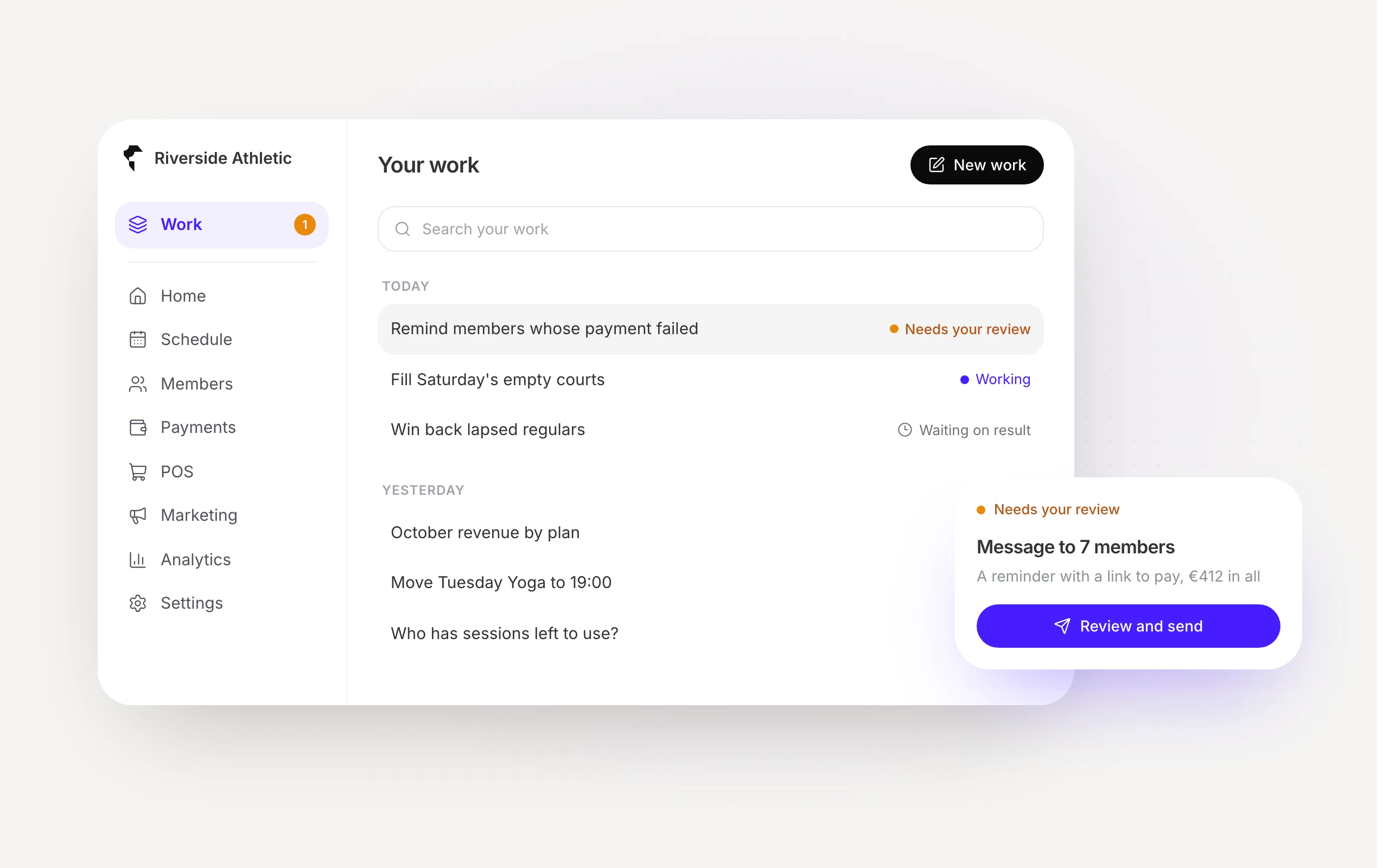
Work leads the main menu, with everything you have goingEach piece shows where it stands: working, needs you, or waitingPick up any piece where you left off, on your phone too
02
Ask, and it gets done
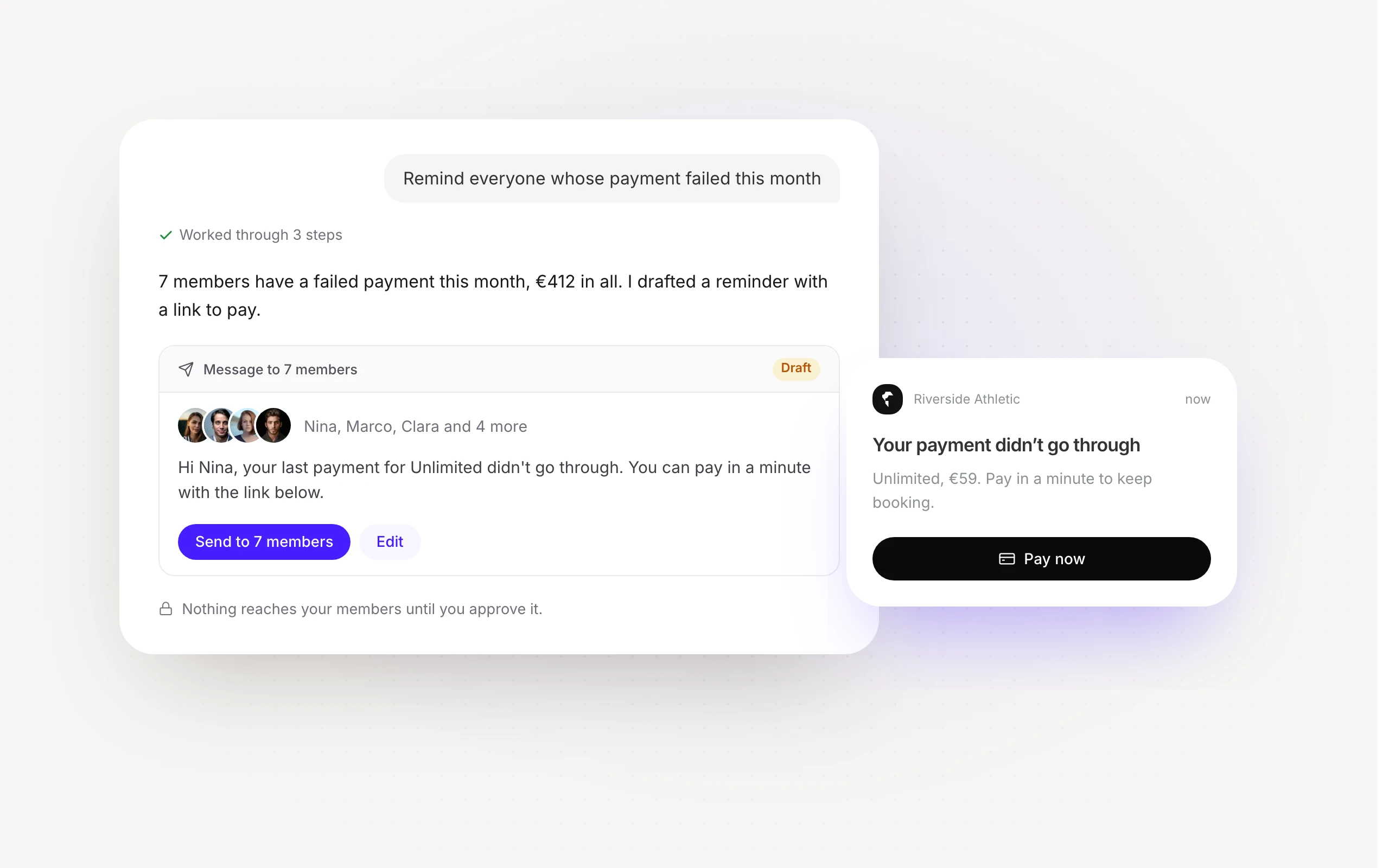
- Ask about bookings, members, payments and reports in plain words
- It drafts the message, the booking or the change for you
- Nothing reaches your members until you approve it
03
You decide who uses it
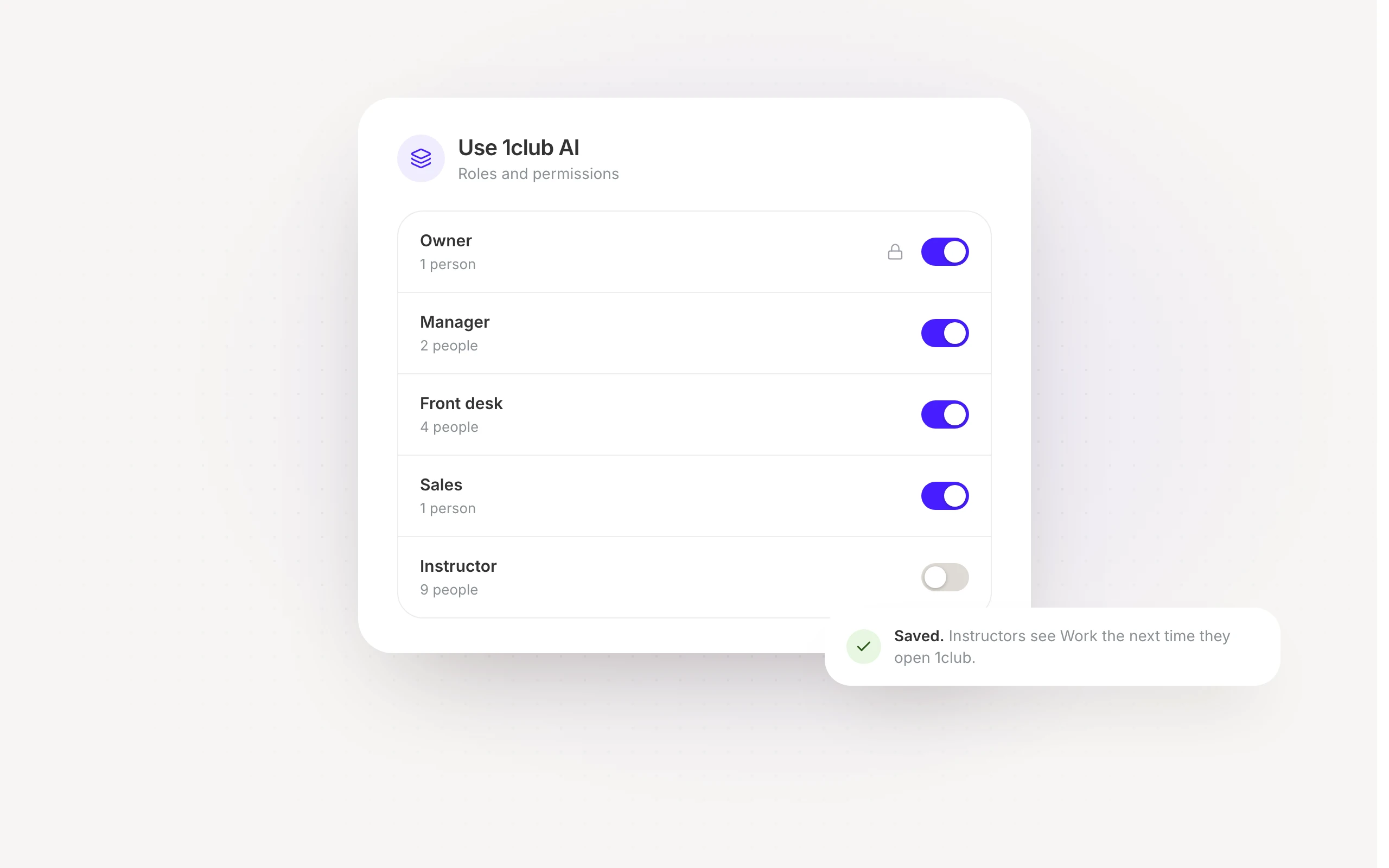
- Switch 1club AI on or off for each role
- Owners, managers, front desk and sales have it from day one
- Instructors get it once you switch it on for them
04
Start from what needs you today
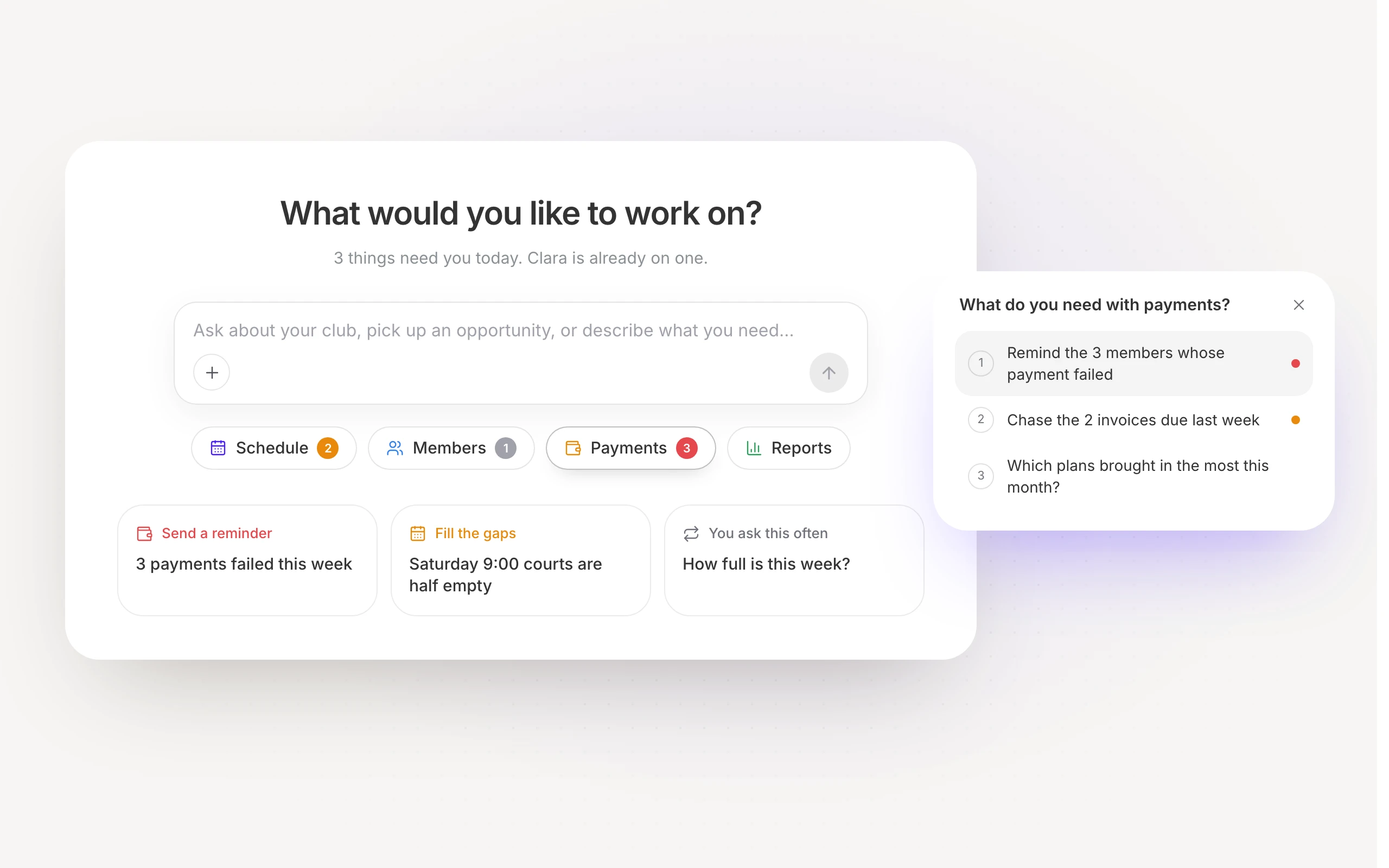
- The day's issues under Schedule, Members, Payments and Reports
- Most urgent first, marked red, orange or grey
- Start any of them in one tap
## How it works
Work is now the first item in the main menu. Everything you have going with the assistant
is listed beside the piece you have open, each marked with where it stands: working, needs
your review, or waiting on a result.
A new piece of work starts on New work. Under the question and a line about your day sit
four topics: Schedule, Members, Payments and Reports. Each shows how many issues wait in
it, coloured by the most urgent. Open one to see them, with a question worth asking, and
start any of them in one tap. Below, three cards bring up the most pressing issues and a
question you ask often.
Using the assistant is now a permission of its own, so you decide who has it, role by
role, in the permissions editor. Owners, managers, front desk and sales keep it;
instructors get it once you grant it to them.
Available now
## 1club AI, with Work first in your menu
[Open in 1club](https://admin.1club.ai/work)
[Read the guide](https://docs.1club.ai/reference/ai-assistants.md)
This documentation is built and hosted on [Mintlify](https://mintlify.com), a developer documentation platform.